# SCIM Setup in Entra ID

This document shows how to synchronize users' information from the Azure AD identity provider to the platform. Please make sure to set up the mandatory settings from the ‘[SCIM Integration](https://doc.keepnetlabs.com/next-generation-product/getting-started/2.-add-target-users/add-users-via-scim)’ page before following the below steps:

1. [Add New Enterprise Application](#add-new-enterprise-application)
2. [Provisioning Settings](#provisioning-settings)
3. [Synchronize Users / Groups](#synchronize-users-or-groups)

## **Add New Enterprise Application** <a href="#add-new-enterprise-application" id="add-new-enterprise-application"></a>

#### **Step 1. Login**

Log in to <https://portal.azure.com/> as an **Azure** **Admin.**

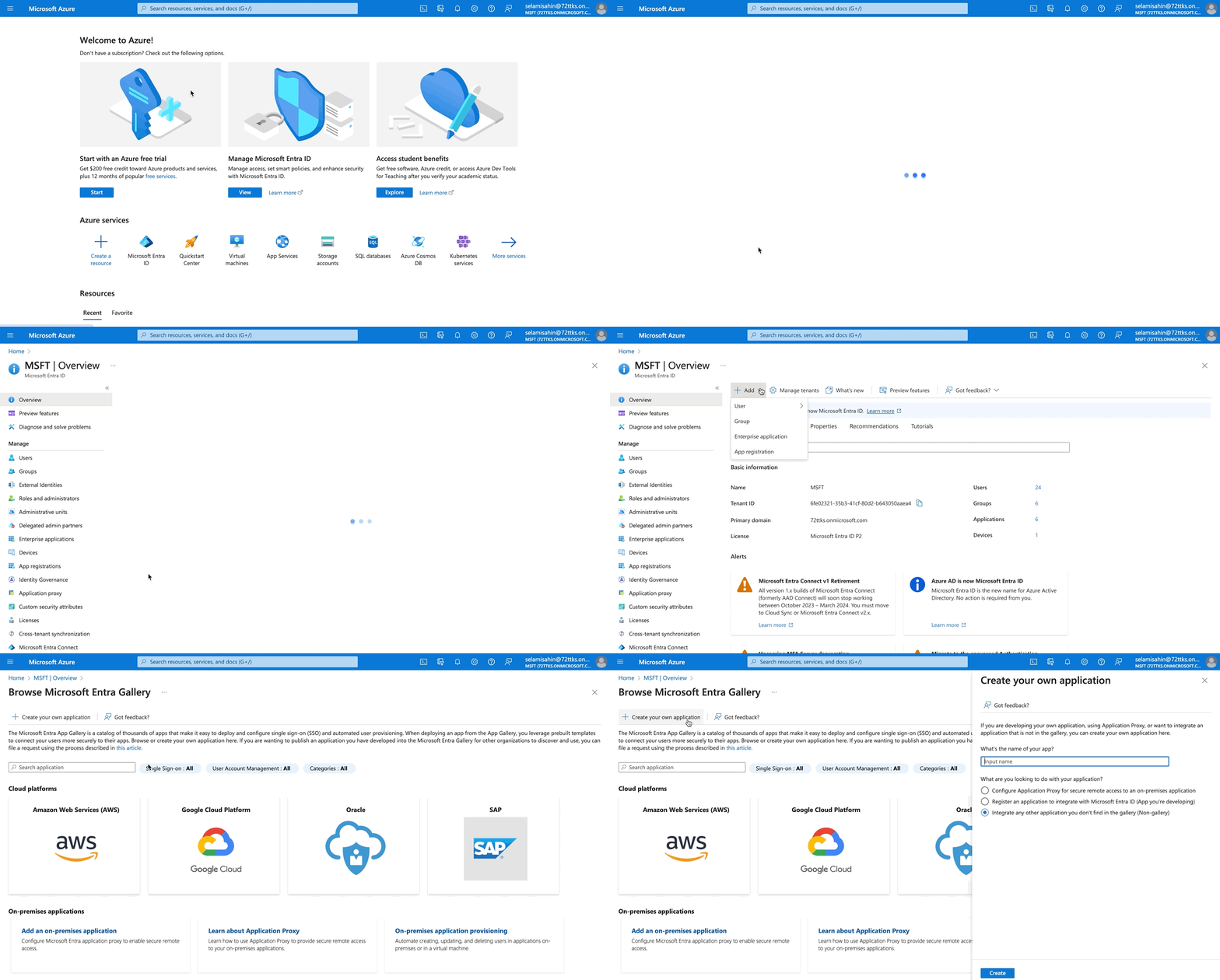
#### **Step 2. Add new Enterprise Application**

1. Click on **Microsoft Entra ID.**
2. Click on **+Add** at the top left hand side.
3. On the drop down select **Enterprise Application**.
4. Click on **+Create your own application.**

<figure><img src="https://files.gitbook.com/v0/b/gitbook-x-prod.appspot.com/o/spaces%2FlKFxOYqYqSykikkXpwjG%2Fuploads%2FuNfGntXnc8sF4FpwJPhC%2Fscim%20step%202.gif?alt=media&#x26;token=5889f92b-5204-447f-b47f-a6649d36418c" alt="Azure — Add Enterprise Application, Create your own application."><figcaption><p>Azure — Add Enterprise Application, Create your own application.</p></figcaption></figure>

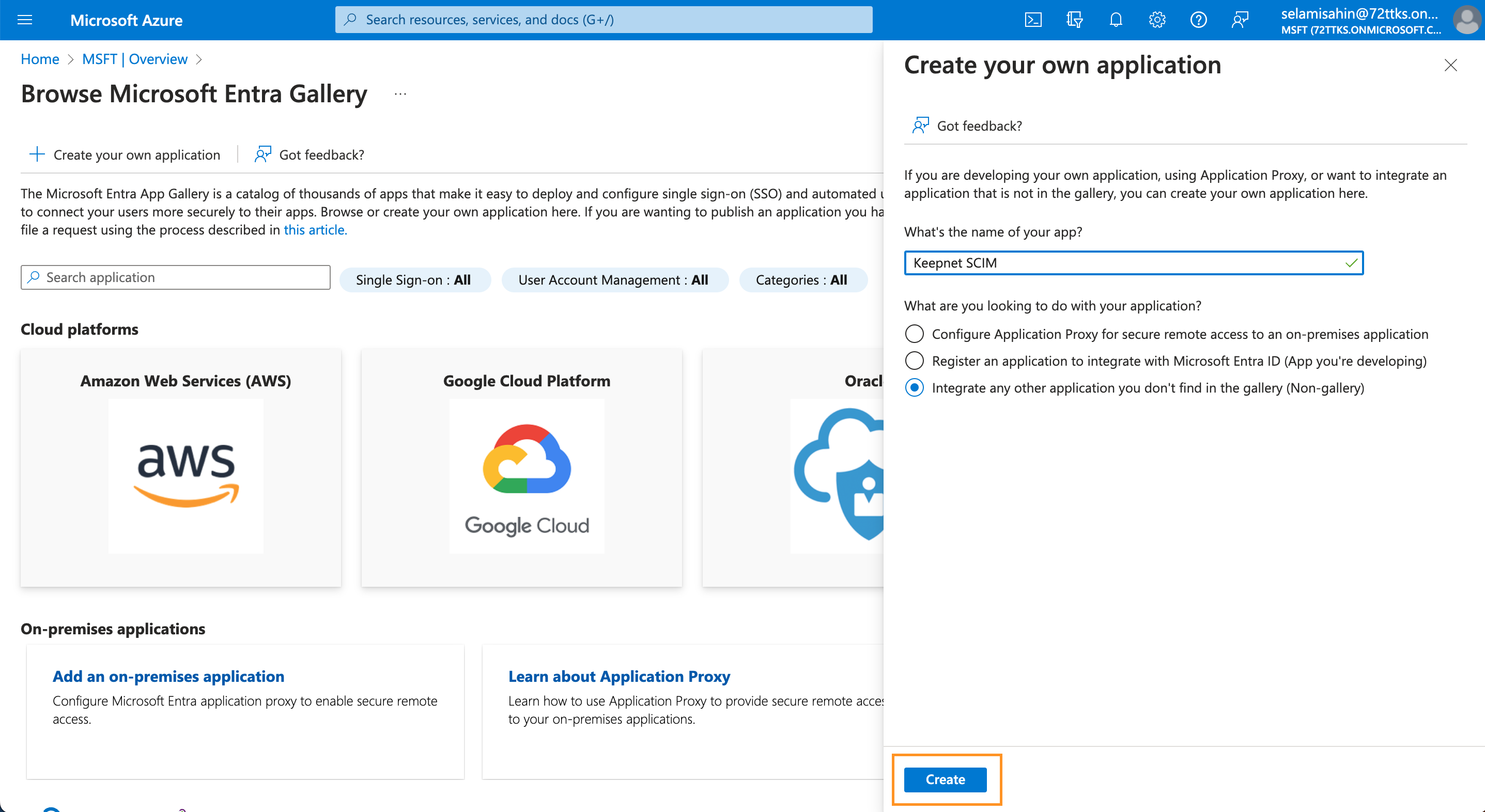
#### **Step 3: Create your own application**

1. **Enter a name** for the application.
2. Select **‘Integrate any other application you don't find in the gallery (Non-gallery)’** option.
3. Click the **Create** button to create the application.

<figure><img src="https://files.gitbook.com/v0/b/gitbook-x-prod.appspot.com/o/spaces%2FlKFxOYqYqSykikkXpwjG%2Fuploads%2FEhQ3oE5Bx5qlPoMYsj23%2FScreenshot%202024-03-08%20at%2015.36.13.png?alt=media&#x26;token=8ac06147-4e42-4a7c-89b0-996651acbd45" alt="Create your own application — name and Non-gallery option."><figcaption><p>Create your own application — name and Non-gallery option.</p></figcaption></figure>

## **Provisioning Settings** <a href="#provisioning-settings" id="provisioning-settings"></a>

1. Select the **‘Provisioning’** menu from the left side.
2. Click the **‘New Configuration’** button and then enter the following information.

**Tenant URL:** <https://scim-api.keepnetlabs.com/scim>

**Secret Token:** Enter the token which was created on the Keepnet platform.

3. Click the **‘Test Connection’** button to test your configuration. If it’s successful, click the **Save** button to save settings.

<figure><img src="https://3453589210-files.gitbook.io/~/files/v0/b/gitbook-x-prod.appspot.com/o/spaces%2F-LMcQ_WCXOrHv3r05ae5%2Fuploads%2FUxWmVIXGLTf9IxDnbqkj%2Fprovisioning%20step%201.gif?alt=media&#x26;token=12597983-f245-4369-871d-c2ea43920ced" alt="Provisioning settings — Tenant URL, Secret Token, Test Connection."><figcaption><p>Provisioning settings — Tenant URL, Secret Token, Test Connection.</p></figcaption></figure>

## **Synchronize Users and Groups**

When synchronizing users, customers have 2 options:

* Synchronize all users in Entra-ID
* Synchronize only assigned users and groups

#### **Synchronize all users and groups in your Entra-ID**

1. Within the provisioning section, use the Settings drop down
2. You will notice it defaults to 'Synchronize only assigned users and groups'
3. Click on '**Synchronize all users and groups'**
4. Save

#### **Synchronize only assigned users and groups**

1. Click on **Users and Groups** in the left hand menu under **Manage**
2. Click on 'Add users/groups'
3. Click on 'None Selected' on the left hand side
4. On the right, you will see a list of your users and groups populate
5. Most customers find it useful to use Groups - if you select a Group, any new members of this group will automatically be added to Keepnet
6. Click Select then Assign on the bottom of the page

<figure><img src="https://3453589210-files.gitbook.io/~/files/v0/b/gitbook-x-prod.appspot.com/o/spaces%2F-LMcQ_WCXOrHv3r05ae5%2Fuploads%2F9tDStalam7TiUHhyoWnZ%2Fscim%20users%20groups.gif?alt=media&#x26;token=2853faec-3273-4bf1-9d9a-e3af89d54690" alt="Users and groups — Add users/groups, assign groups for SCIM sync."><figcaption><p>Users and groups — Add users/groups, assign groups for SCIM sync.</p></figcaption></figure>

## Start Provisioning

The final step is to start provisioning. Simply go to Overview on the left hand menu and select **Start Provisioning** on the top of the page.

Your users will sync from Microsoft to Keepnet every 40 minutes, ensuring any new employees who belong to one of your assigned groups is automatically added to Keepnet

{% hint style="info" %}
You can see target users on the platform approximately in a few minutes. The Azure AD rechecks the application for new users, changes or deleted users every 40 minutes.
{% endhint %}

✅ **You have now added your first Target Users. Now you need to** [**ensure they are able to receive emails from Keepnet** ](https://github.com/ucarozan/keepnet-docs/blob/main/next-generation-product/getting-started/3.-email-deliverability)**successfully ➡️**

## Tutorial Video

This video tutorial shows the documentation steps for synchronizing users' information from the Azure AD identity provider to the platform.

{% embed url="<https://youtu.be/Lg-4aF6yGh8>" %}

A